
Mysearch123 virus free removal steps


Mysearch123 is a potentially unwanted program classified as browser hijacker. It penetrates into computers along with other free programs. It changes the homepage of all installed browsers into mysearch123.com. This domain name will be set in your browser on the startup when you launch it each time. Many users find it difficult to get rid of this hijacker. The tutorial below furnishes you with the free tips on Mysearch123 virus removal.
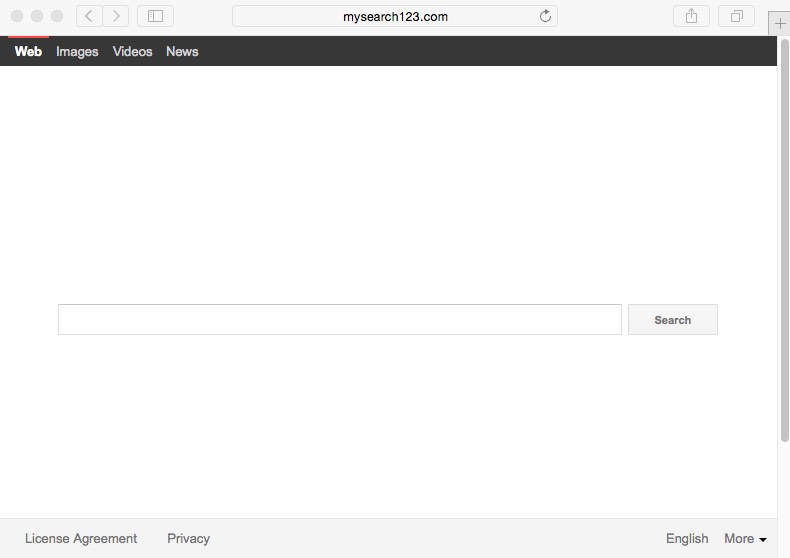
Mysearch123 hijacker is furnished with a special software preventing users from removing it easily. The name of this software is called MiuiTab, of which we wrote in our previous article as per today. Its alternative name is called “Search Protect”. MiuiTab is a special folder in the “Program Files” directory of your computer. It has several executables like HPNotify.exe or SupHPNot.exe in charge of hijacking. To completely get rid of mysearch123.com you first need to uninstall MiuiTab virus folder.
Mysearch123 removal menu:
- Recommended software to remove malware automatically.
- Resetting browser settings after automatic virus removal.
- Video explaining how to reset your browsers infected with Mysearch123.
- Tutorial to remove Mysearch123 virus manually.
- How to prevent your PC from being reinfected.
To remove MiuiTab you need to find this folder in the “Program Files” directory of your computer. Open the folder and click on the “Uninstall” button. Complete the process of uninstalling this malicious folder and the related software in it. Here is a video guide demonstrating this uninstall process:
To remove Mysearch123 you will then need to access the Control Panel of your system and check the list of legally installed software. Find “mysearch123 uninstall”, then right-click on this item and select “Uninstall/Change”. You might need to specify some characters and then proceed with the uninstall guidelines. Then you might need to fix the shortcuts (icons) of your browser and change the home page settings of it. Once the uninstall process is completed, your browser will most likely function properly, without any redirections. Here is the video guide directly explaining these manual uninstall milestones:
On the other hand, sometimes these manual removal instructions don’t work on certain PCs. The browser continues to be hijacked and redirected through this particular web page. If so, we recommend you to follow our automatic removal instructions to get rid of this nasty hijacker with the help of GridinSoft Trojan Killer.
Before you proceed to our automatic removal recommendations, note that it is obviously much easier to prevent any malicious programs from infecting your PC then to look for the ways of their removal after those attacks were successfully accomplished. Mysearch123 is spread with many free programs today, so your job is to be very careful when dealing with freeware. Always make sure you carefully read the EULAs (End User License Agreements) related to all free software you’re going to install into your computer. If you do find the information about some additional programs you don’t need, please switch to the advanced or custom installation mode where you may uncheck these extra components from becoming the part of your system by default. This is the only way to avoid all kinds of unwanted malware intrusions into your computer.
To get rid of Mysearch123 virus automatically you will need to scan your system with GridinSoft Trojan Killer, remove all the infections it finds (with its full registered version) and to reset your browsers with its help. These simple automatic steps will completely clean your system and restore your browser back to the fully functional mode. Plus, the built-in “Protect” feature of Trojan Killer will help you to avoid further malware attacks on your PC.
Software to get rid of Mysearch123 automatically.

Important milestones to delete Mysearch123 automatically are as follows:
- Downloading and installing the program.
- Scanning of your PC with it.
- Removal of all infections detected by it (with full registered version).
- Resetting your browser with GridinSoft Trojan Killer.
- Restarting your computer.
Detailed instructions to get rid of Mysearch123 automatically.
- Download GridinSoft Trojan Killer through the download button above.
- Install the program and scan your computer with it.
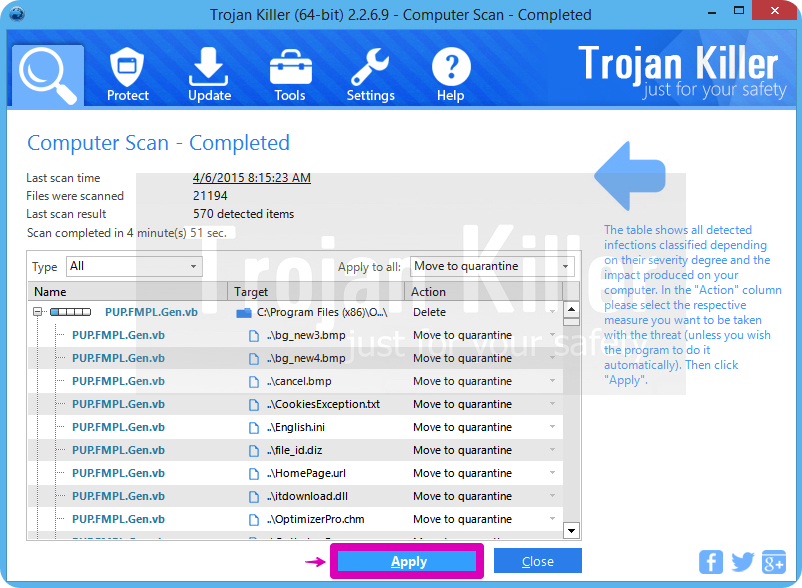
- At the end of scan click “Apply” to remove all infections associated with this browser hijacker:
- Important! It is also necessary that you reset your browsers with GridinSoft Trojan Killer after removal of malware from your computer. Shut down all your available browsers now.
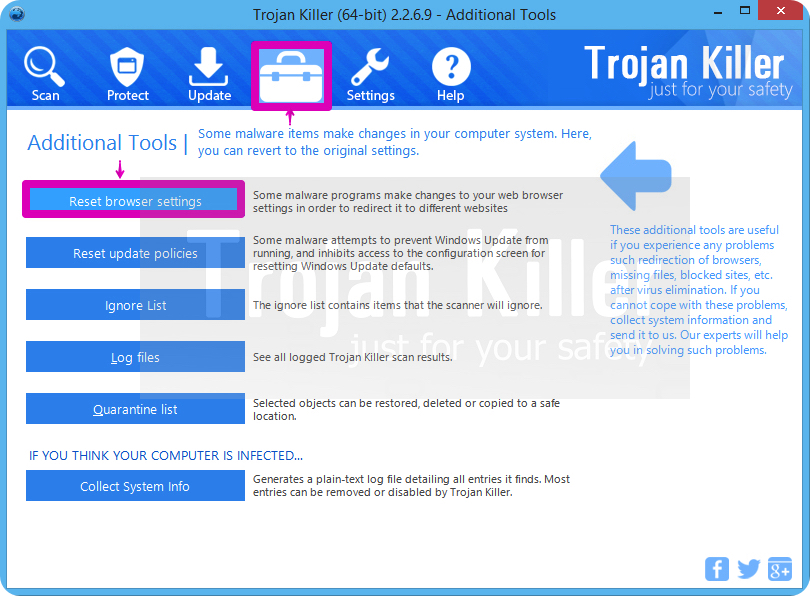
- In GridinSoft Trojan Killer click on “Tools” tab and select “Reset browser settings“:
- Select which particular browsers you want to be reset and choose the reset options.
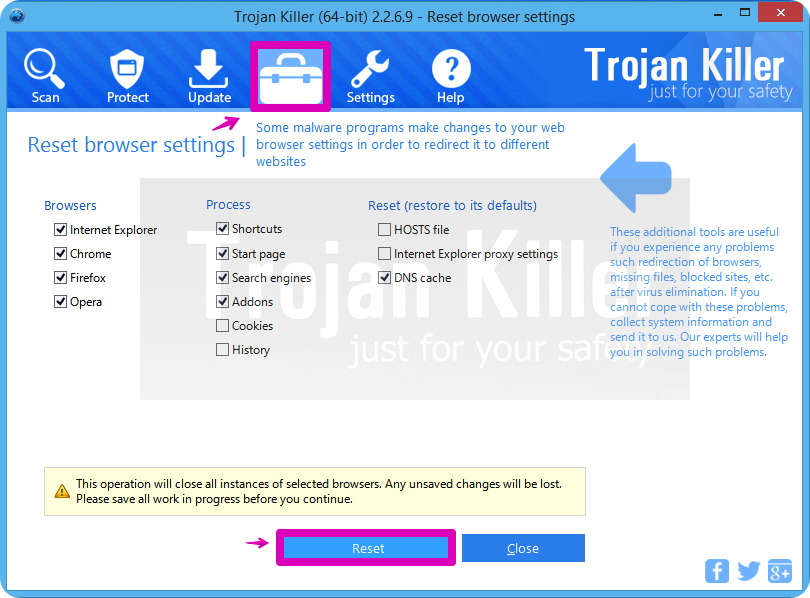
- Click on “Reset” button.
- You will receive the confirmation windows about browser settings reset successfully.
- Reboot your PC now.
Video guide explaining how to reset browsers altogether automatically with GridinSoft Trojan Killer:
Detailed removal instructions to uninstall Mysearch123 manually
Step 1. Uninstalling suspicious applications from the Control Panel of your computer.
- Make sure that all your browsers infected with this particular hijacker are shut down (closed).
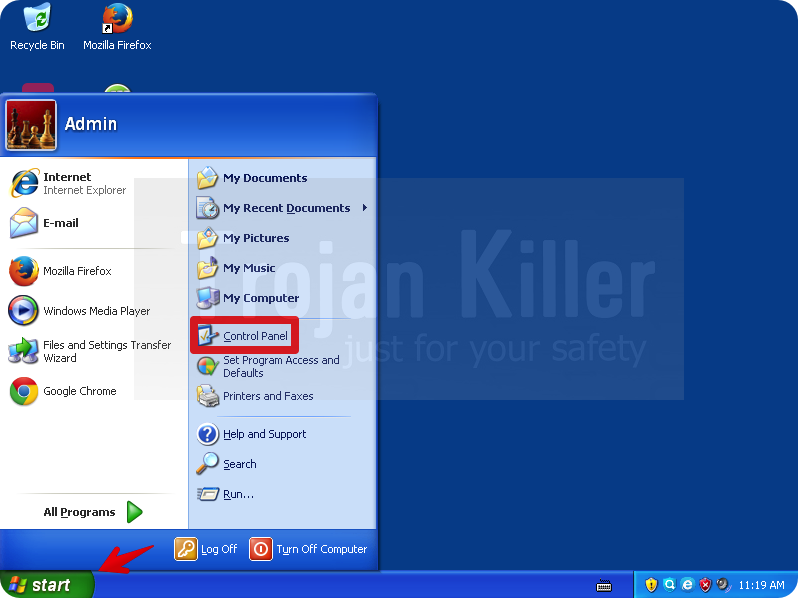
- Click on “Start” and go to the “Control Panel“:
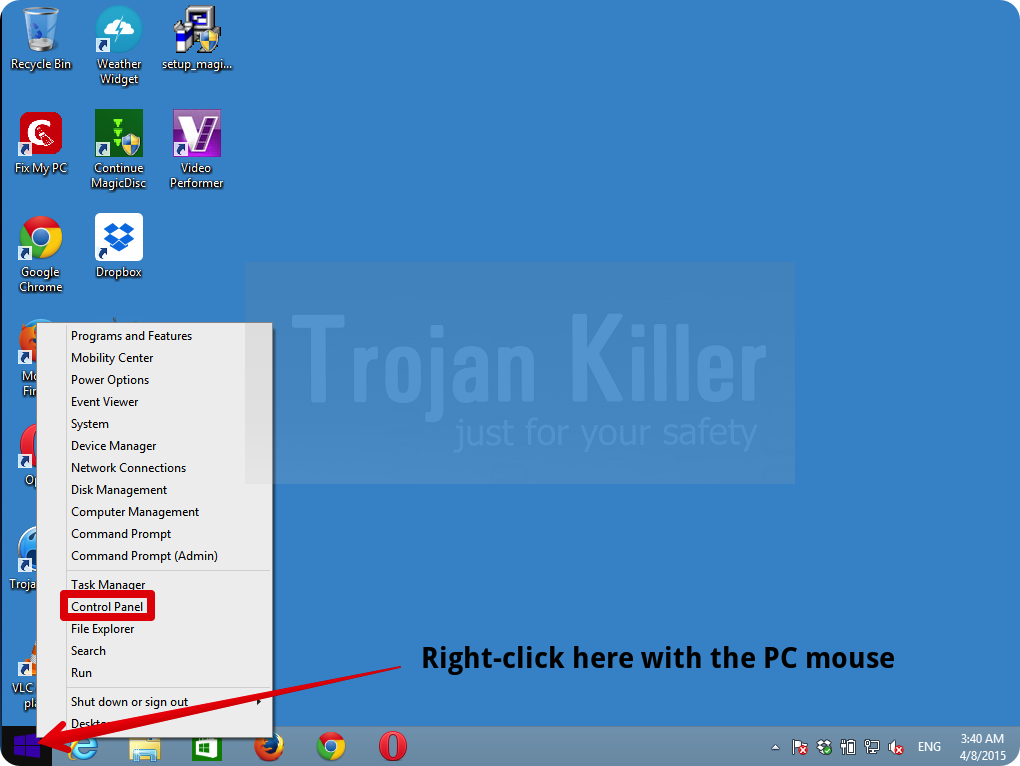
- To access the Control Panel in Windows 8 operating system move the computer mouse towards the left bottom hot corner of Windows 8 screen and right-click on it. In Windows 8.1, simply right-click on the “Start” button. Then click on “Control Panel“:
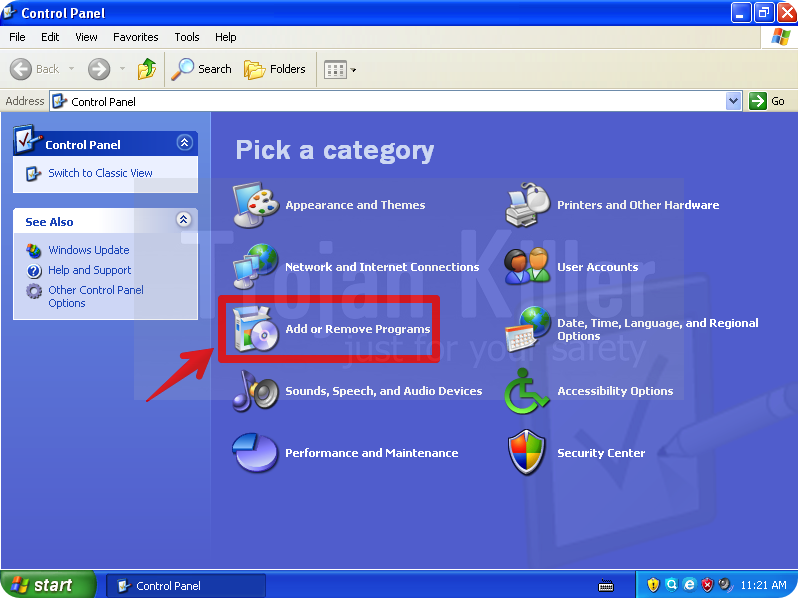
- In Windows XP click on “Add or remove programs“:
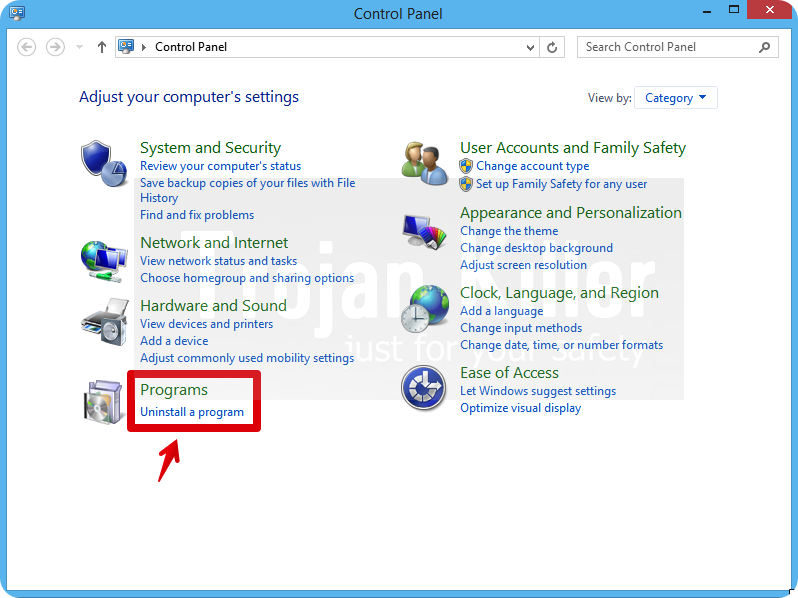
- In Windows Vista, 7, 8 and 8.1 click on “Uninstall a program“:
- Uninstall “mysearch123 uninstall”. To do it, in Windows XP click “Remove” button related to such applications. In Windows Vista, 7, 8 and 8.1 right-click on certain suspicious program with the PC mouse and click on “Uninstall / Change“.
Step 2. Removing suspicious elements from the list of add-ons and extensions of your browser.
In addition to removal of suspicious programs from the Control Panel of your PC as explained above, you also need to remove suspicious items from the add-ons or extensions of your browser. Please follow this guide for managing browser add-ons and extensions for more detailed information. Remove any items related to this browser hijacker and other unwanted applications installed on your PC.
How to prevent your PC from being reinfected:
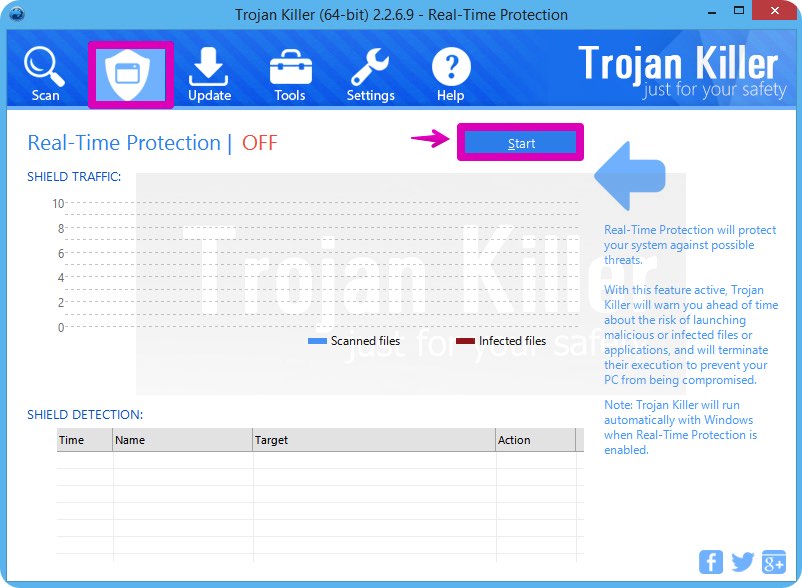
GridinSoft Trojan Killer offers a superb service to prevent malicious programs from being launched in your PC ahead of time. By default, this option is disabled once you install Trojan Killer. To enable the Real-Time Protection mode click on the “Protect” button and hit “Start” as explained below:
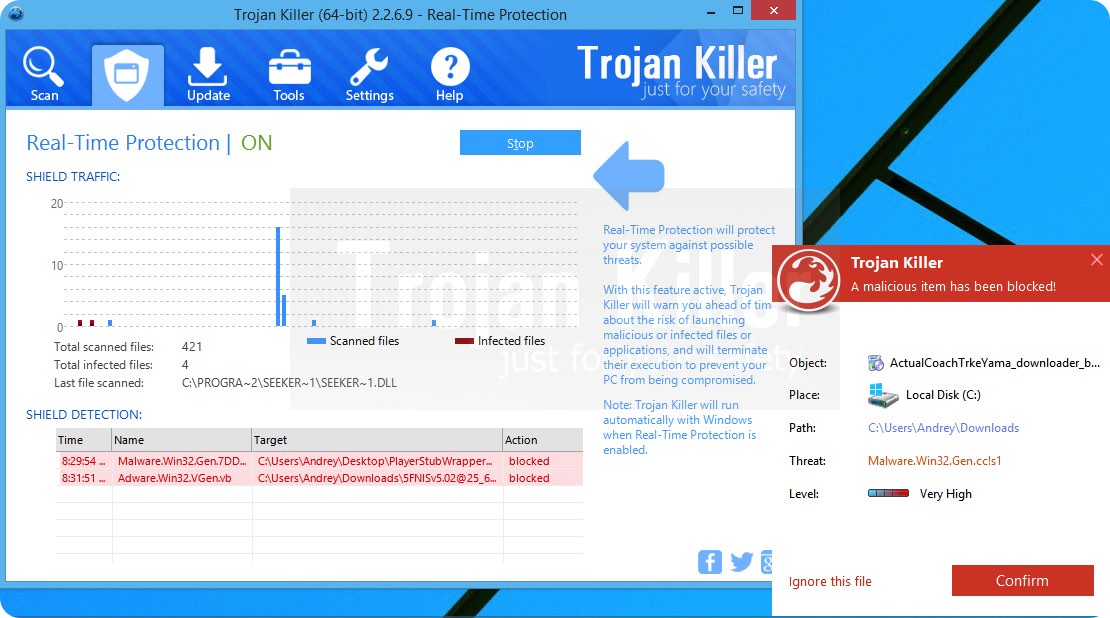
Once this option is enabled, your computer will be protected against all possible malware attacking your PC and attempting to execute (install) itself. You may click on the “Confirm” button to continue blocking this infected file from being executed, or you may ignore this warning and launch this file.
Categories:
[…] very SFK folder is extremely malicious and is related to one or several browser hijackers, such as Mysearch123. In this guide you will find the relevant information that will help you to get rid of these nasty […]
its work !!
thanks dude
follow the video guide fully